How to Use Claude Without Running Out of Your Free Limit
Claude's free daily limit is based on how much it processes in each conversation, not on how many messages you send. The longer a conversation gets, the more it costs each reply. Here is how to make it last.
-
Start a new chat for every new topic.
This is the single most effective thing you can do. Every message adds to what Claude re-reads. A long conversation costs far more than several short, focused ones. When you're done with one task, close it and start fresh.
-
Keep your prompts focused.
Claude doesn't need a long backstory. Give it the essential context, your situation, what you want, the key details, and nothing more. A tight prompt gets a better answer and uses less of your limit.
-
Ask for shorter answers when you don't need length.
Add "be concise" or "keep this brief" to any prompt. A shorter response uses less of your limit and is often more useful anyway.
-
Don't upload large documents unless you specifically need them analysed.
Uploading a 20 page document when you only need one paragraph costs the same. Copy and paste the relevant section instead.
-
Use Claude for the tasks it does best.
Claude excels at thoughtful, nuanced tasks, understanding complex documents, thinking through difficult situations, writing carefully. Use Gemini or ChatGPT for quick lookups. Save Claude for where the depth is worth it.
-
If you hit the limit, it resets the next day.
You don't need to do anything. Just come back tomorrow.
Hidden gem
Gemini Canvas: How to Create a Presentation in Minutes
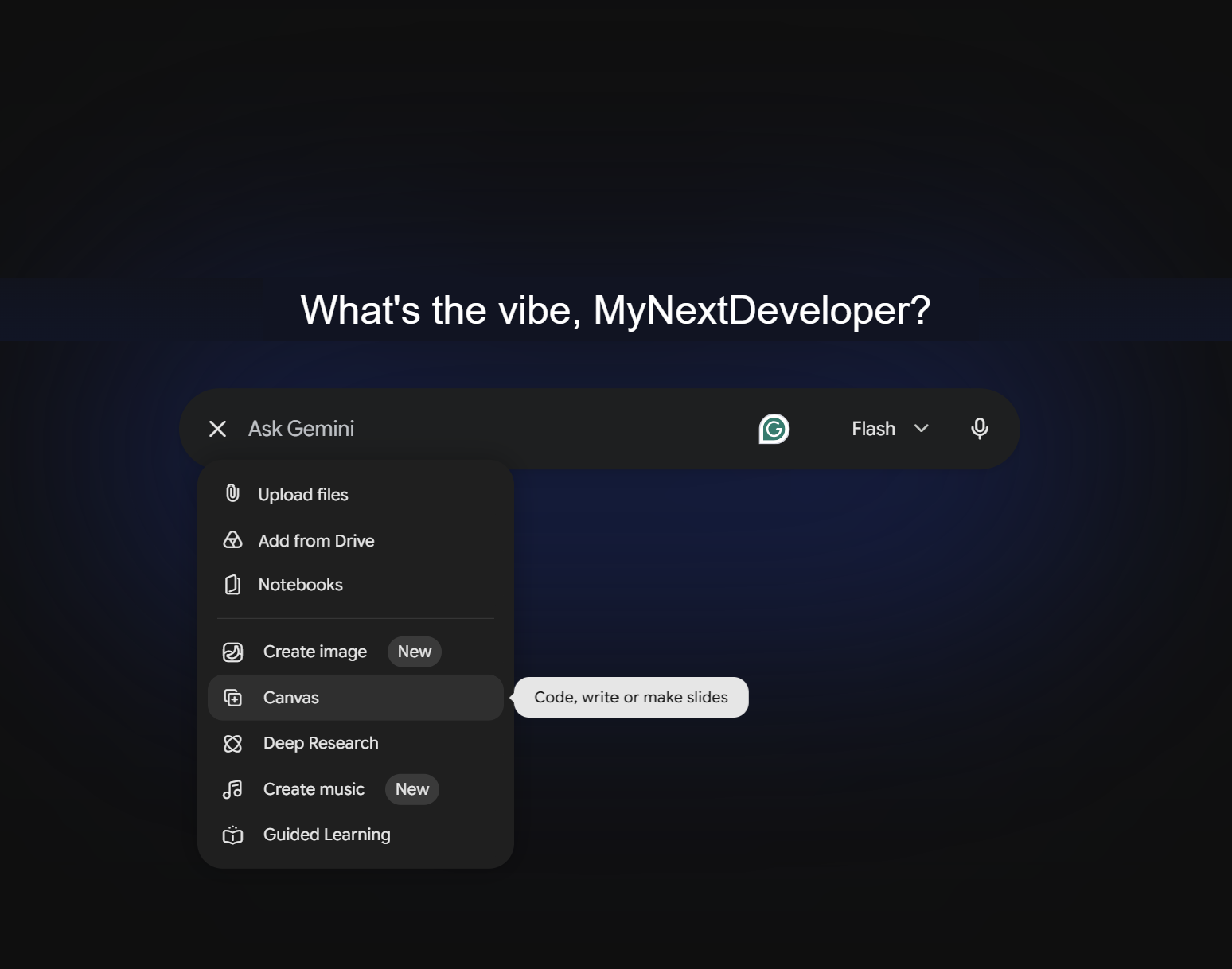
One of the most underrated features in Gemini. Generate a complete, designed presentation from a single prompt or document, and export it to Google Slides in one click.
Just want the quick prompt to copy and paste? You'll find it in the Prompt Library, under Gemini.
-
1
Go to gemini.google.com and sign in with your Google account.
-
2
Open the Tools menu and select Canvas.
This opens a larger workspace alongside the chat where Gemini builds things in real time while you watch.
-
3
Type "create a presentation" followed by your topic.
"Create a presentation about the benefits of AI for working women in India, 8 slides, keep it simple and professional", or upload a PDF and ask Gemini to build from that.
-
4
Gemini builds slides, layout, theme, and images in Canvas.
Scroll through and review each slide. Adjust anything by typing in the chat: "Make slide 3 shorter." "Add a slide about next steps." "Change the theme to something warmer."
-
5
Click Export to Google Slides when ready.
The deck opens directly in Google Slides in your Drive for final edits, speaker notes, and sharing.
A few things worth knowing
- You can upload up to 10 files per prompt, notes, a report, a brief, and ask Gemini to synthesise everything into one deck.
- If you prefer a PDF version instead of Google Slides, there's a download option in Canvas.
- If Canvas isn't showing up yet, it's still rolling out, it should appear within a few weeks.
You Don't Have to Type, Just Talk
Voice commands
Most AI tools let you speak instead of type. Look for a small microphone icon inside the chat box, usually near where you type your message.
Tap it, and speak your question exactly the way you would ask a person. For example, you could say out loud, "Help me write a message to my landlord about a leaking tap," instead of typing it.
This is especially useful if typing feels slow, if you're more comfortable speaking than writing, or if your hands are busy with something else. The AI will understand you and reply just as if you had typed the same words.