The everyday problem
Many of us watch long YouTube videos every day. Maybe it's a recipe video, a video explaining a health topic, or someone showing how to do something step by step. Watching the whole thing can take twenty minutes or more, even if you only need one part of it.
There is a free Google tool called NotebookLM that can help. It reads the video for you and gives you the important points in writing, so you don't have to watch the whole thing to get what you need.
How to use it, step by step
-
1
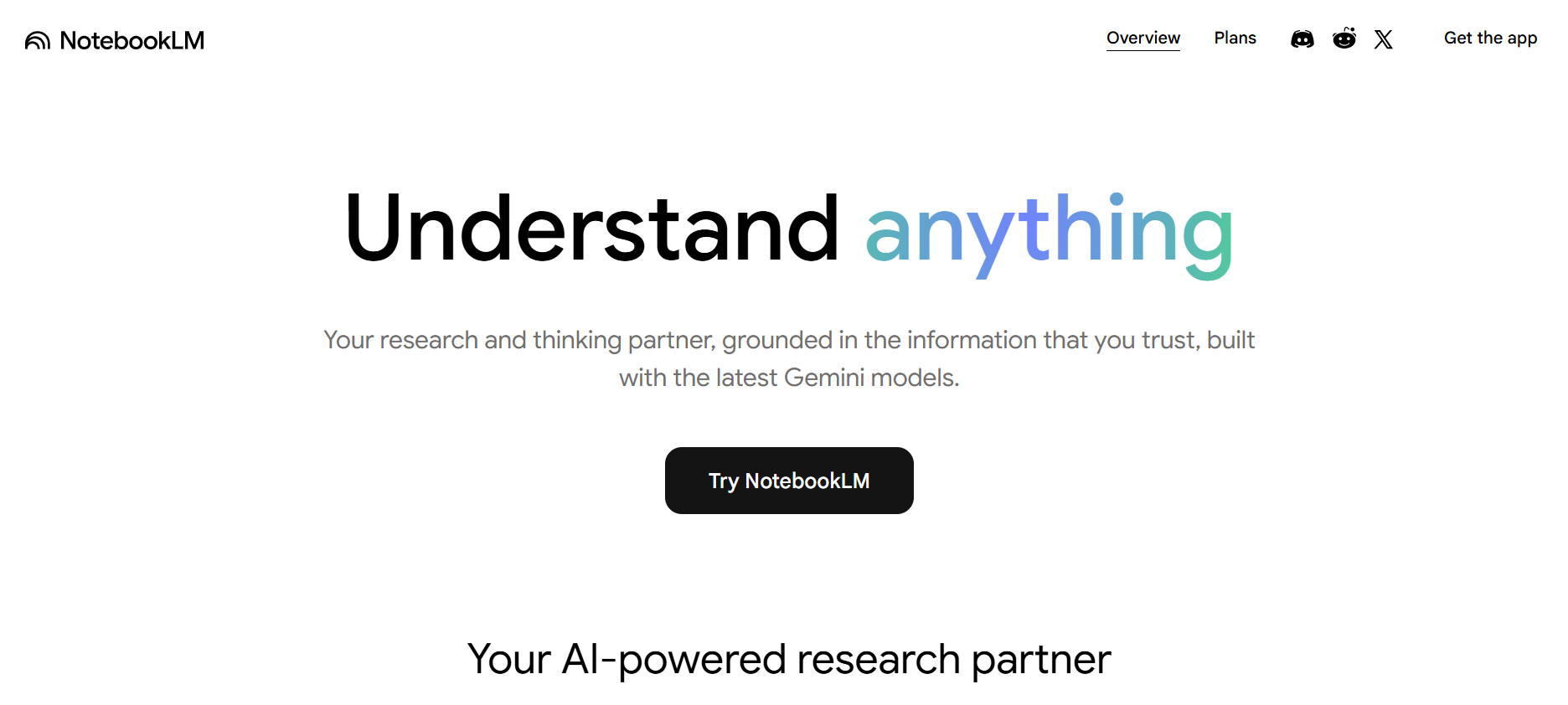
Go to notebooklm.google.com on your phone or computer, and sign in with your Google account.
-
2
Find the YouTube video you want to understand better.
Copy its link, using the share button under the video.
-
3
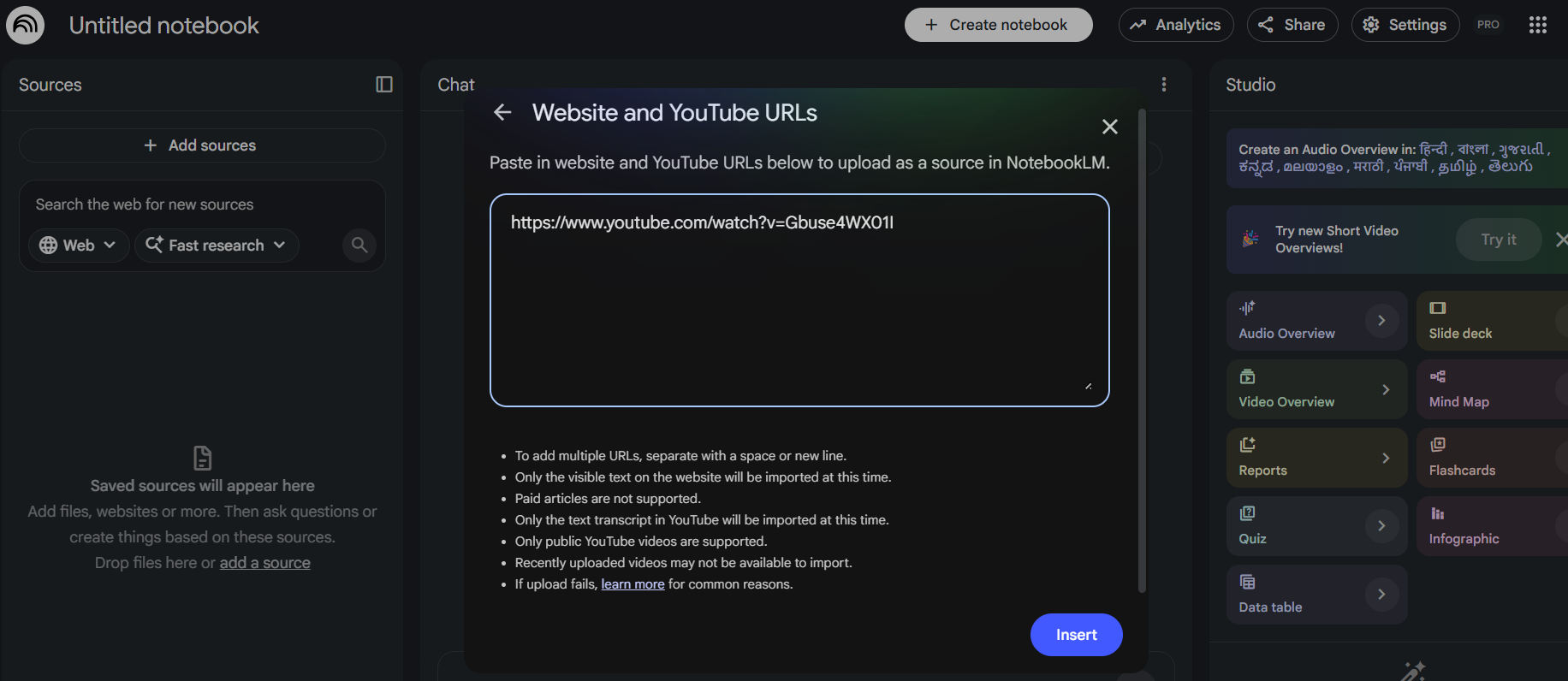
In NotebookLM, choose to add a new source, and select YouTube.
Paste the link in.
-
4
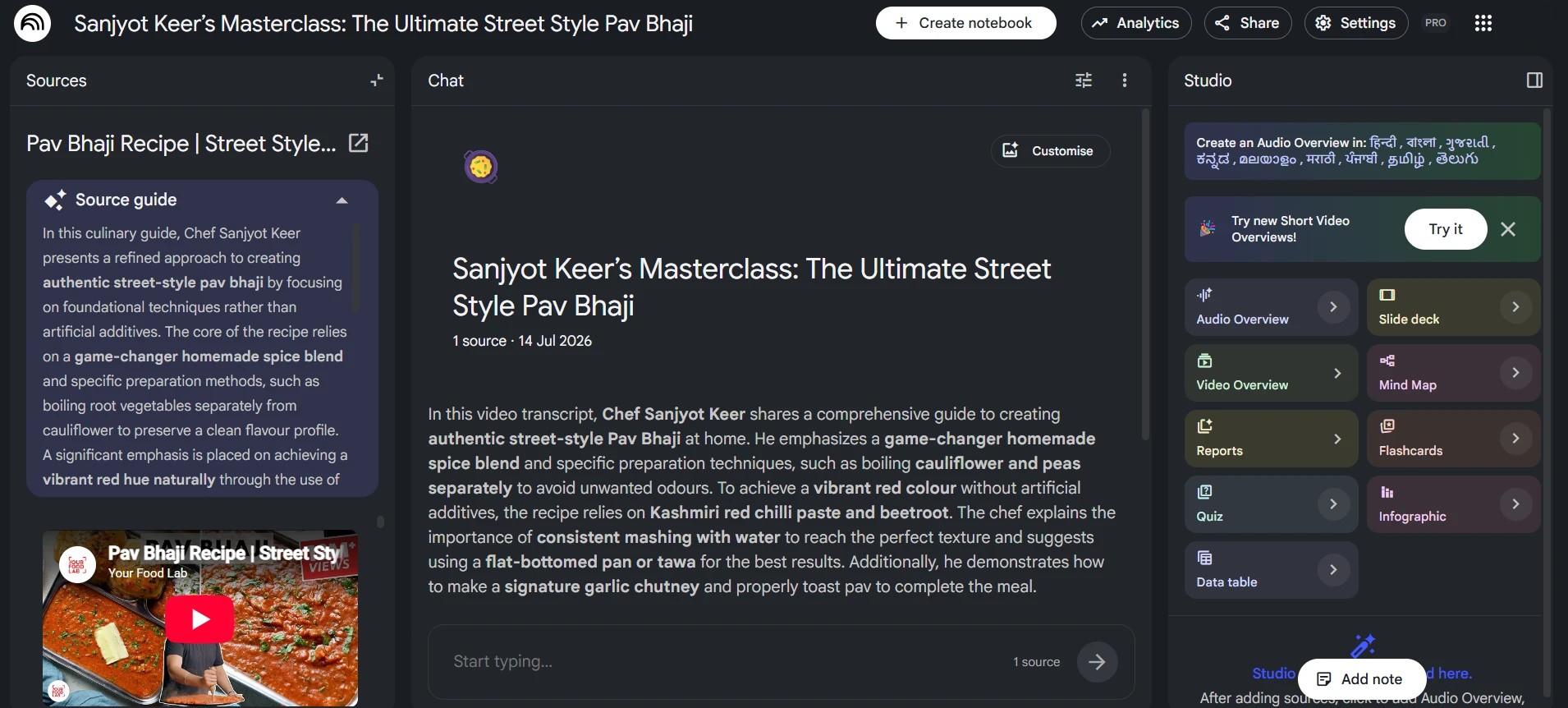
NotebookLM will read the video's captions and give you a summary of the main points, in simple writing.
-
5
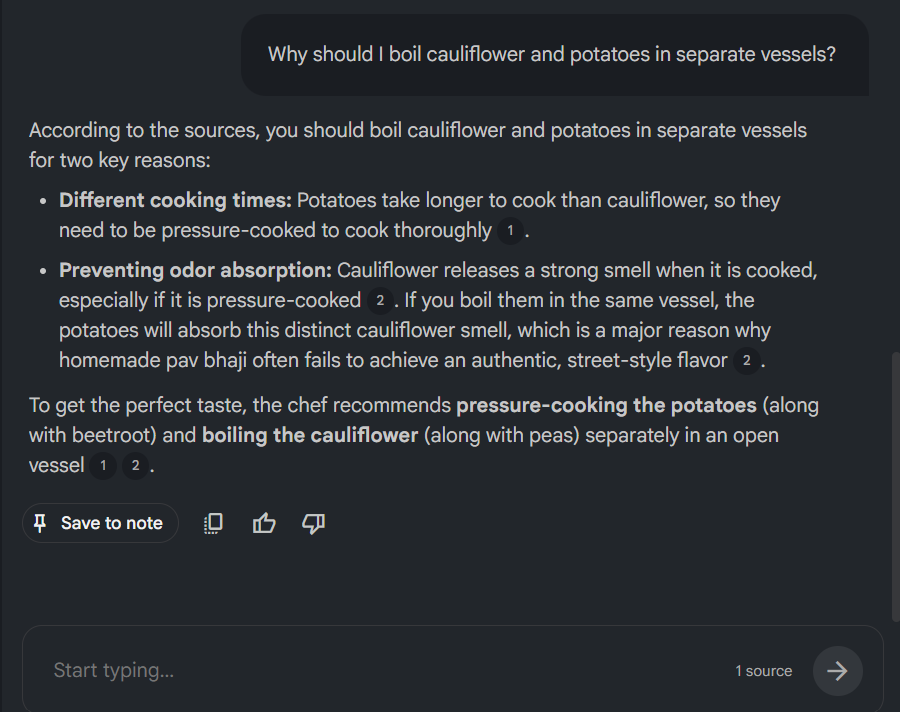
You can then ask it questions directly.
Try something like "how much sugar did she use?" or "what were the three main steps?", and it will answer using only what was said in the video.
A relatable example
Imagine your favourite recipe channel posts a twenty minute video on making a festive sweet. Instead of watching the whole thing, you paste the video link into NotebookLM, and ask, "What are the ingredients and the steps, in order?" You'll get a clear, simple list in seconds, and you can always go back to the video itself if you want to see how something is done.
One honest thing to know
This works on most videos, but not every one. NotebookLM needs the video to have captions already turned on. If a video has no captions, it won't be able to read it. This isn't something you need to check in advance, just try it, and if it doesn't work, that's usually why.